Workspace
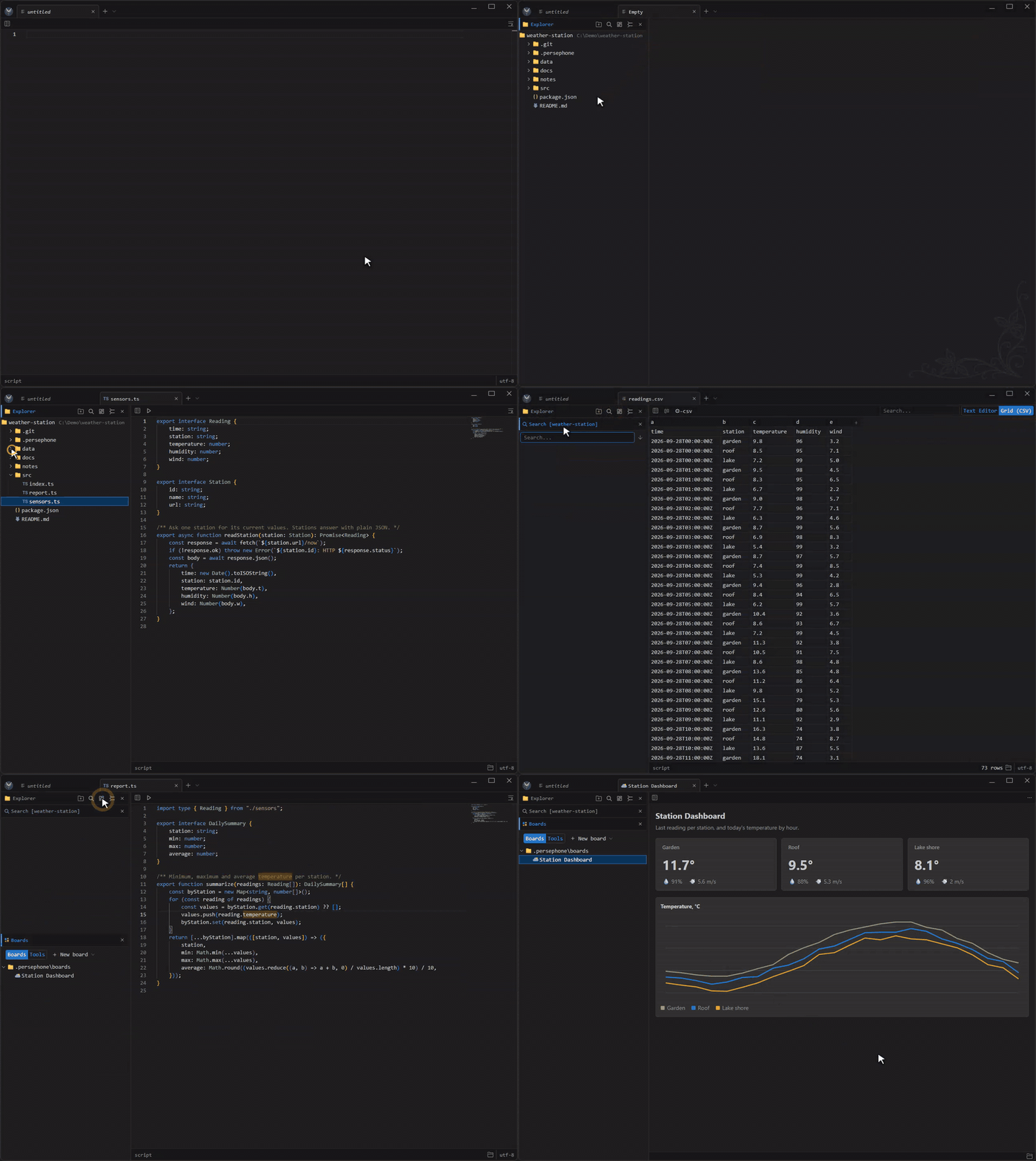
A workspace in Persephone is a tab opened on a project folder. That tab gets its own sidebar with an Explorer of the folder, a Search across it, and the Boards that belong to the project. There are no workspace files and nothing to set up: open a folder and start working.
Core features
Section titled “Core features”- Folders in the menu. Pin the folders you use most to the Persephone menu. Double-click a project there to open it as a workspace tab.
- One Explorer per tab. Each tab keeps its own sidebar, rooted at its project, so two projects open side by side never mix. The Explorer root can also be an archive.
- The right editor for every file. Markdown opens as a preview, code in the Monaco editor, and CSV or JSON as a sortable grid. Switch between views from the page toolbar.
- Project-wide search. Search every file under the root, with include and exclude patterns. Matches are grouped by file; click one to jump to the line.
- Boards that travel with the project. Boards you trust in the project’s
.persephone/boardsfolder show up in the Boards panel. Dashboards and helpers your agent builds for this project live in its folder and go wherever it goes. - Git and clipboard at hand. The same sidebar hosts the Git panel for a repository and, when you turn it on, your clipboard history.
Why it helps
Section titled “Why it helps”- Work on several projects at once. Each tab remembers its own folder, open file and panels, and Persephone restores them on the next start.
- No separate tools for data files. Logs, CSV, JSON and notes open where your code is.
- Your agent sees the same thing you do. It can open files in the workspace, search it and run the project’s boards through the MCP server.
Try it
Section titled “Try it”- Open the Persephone menu, click Add Folder and choose a folder that holds your projects.
- Double-click a project in that folder to open it as a workspace tab.
- In the Explorer header, use the Search and Boards buttons to open those panels.