Installing boards
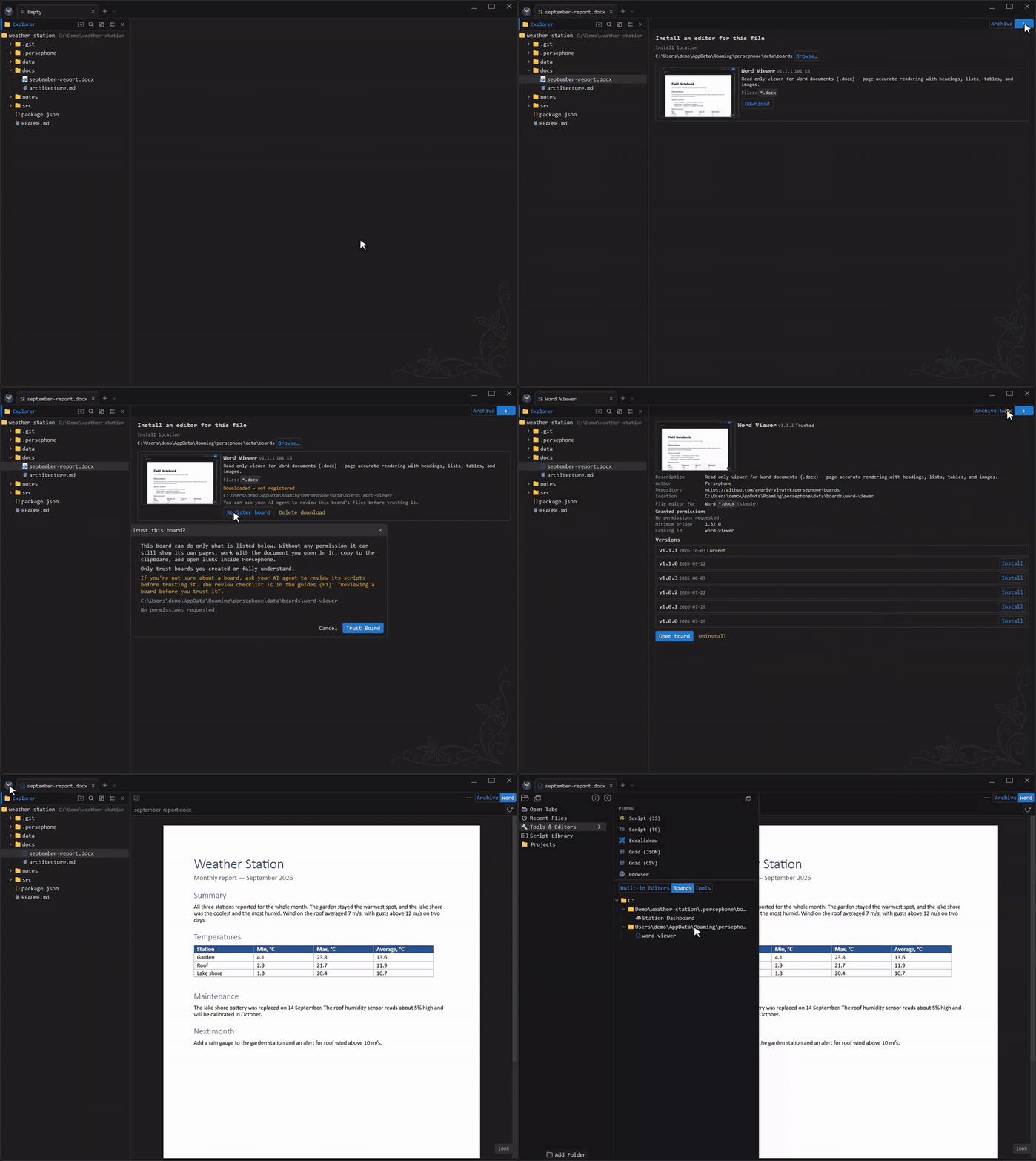
Persephone keeps its core small. Viewers for Word, Excel, PowerPoint, PDF, draw.io or SQLite files are boards in the board catalog, installed when you first need them. Open a file that has no viewer yet, click +, and Persephone offers the boards that can open it.
Core features
Section titled “Core features”- Offered where you need it. When no installed editor fits a file type, the editor switch shows +. It opens Board Info with the catalog boards that can open that file.
- Two explicit steps. Download fetches the board, verifies its checksum and unpacks it. Nothing runs yet: you, or your AI agent, can read its files first. Register board then asks for your trust.
- You decide what it may do. The trust dialog lists the permissions the board declares, such as running programs, file access or network. A viewer like Word Viewer asks for none.
- Next to the built-in editors. Once trusted, the board appears in the editor switch for its file types, so you can flip between Archive and Word on the same page.
- Updates and rollback. Board Info lists every published version. Install a newer one or roll back; the old folder is replaced only after the new version downloads and verifies.
- Everything in one place. Tools & Editors → Boards lists all your boards: the ones you installed and the ones your agent built for your projects.
Why it helps
Section titled “Why it helps”- A small, fast app. You download a 3.5 MB PDF viewer only if you open PDFs.
- No mystery code. Nothing from the catalog runs until you trust it, and it gets only the permissions it declared.
- The same mechanism as your own boards. Catalog viewers are ordinary boards, so your agent can build one for a format the catalog doesn’t cover.
Try it
Section titled “Try it”- Open a
.docx,.xlsx,.pdfor.drawiofile and click + in the editor switch. - Or browse the whole catalog: open Tools & Editors, click Open in new tab, then Search boards.